Height Check
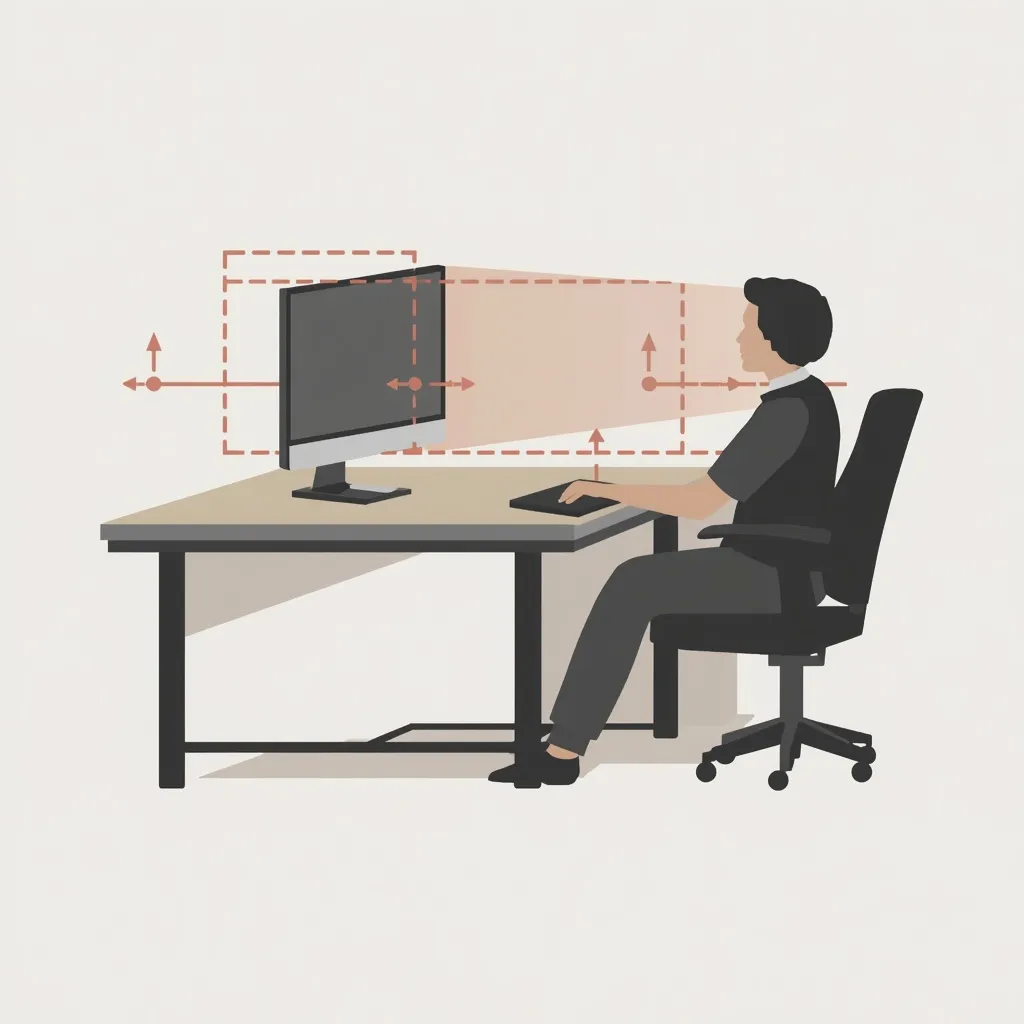
The top edge of your screen should be at or slightly below eye level when sitting upright. Use a monitor stand or stack of books if needed.
A thoughtful review of your desk environment. Walk through each element of your setup and notice where small adjustments may create a more balanced work experience. For general education only — not a clinical assessment.
This is not a test or scoring system. It is a guided walkthrough that helps you notice how your current setup feels and where gentle changes might make day-to-day use more comfortable.
Work through each section at your own pace. Make one adjustment at a time and give yourself a few days to notice the difference before changing something else.
Your chair is the anchor of your workspace. Balanced height and support can form the foundation for everything else in your setup.
Feet rest flat on the floor or on a footrest, with thighs parallel to the ground and knees at roughly ninety degrees.
Lower back is supported by the chair's lumbar curve or a small cushion placed at the natural curve of your spine.
There is a small gap between the back of your knees and the seat edge — about two to three fingers wide.
Desk height allows forearms to rest comfortably on the surface with elbows at approximately ninety degrees.
Screen position can influence how your neck and eyes feel during extended viewing. These reference points may help you find a placement that feels natural for your setup.
The top edge of your screen should be at or slightly below eye level when sitting upright. Use a monitor stand or stack of books if needed.
Sit at your usual working distance and extend your arm — your fingertips should just reach the screen. Adjust forward or back as needed.
Position the monitor directly in front of you, not off to one side. For dual monitors, place the primary screen centered and the secondary at a slight angle.
How you interact with input devices can affect wrist and shoulder comfort. Small positioning changes may help ease repetitive strain over time.
Keep the keyboard centered in front of you with wrists straight and hands floating lightly above the keys. A negative tilt keyboard tray can help maintain neutral wrist angles.
Place the mouse close to the keyboard at the same height. Reaching sideways for the mouse strains shoulder muscles over long periods.
Use a soft wrist rest only during pauses, not while actively typing. Rests should support the heel of your palm, not the wrist itself.
Your ambient environment completes the workspace picture. Review these factors to ensure your room supports comfortable, sustained computer work.
Overhead lighting is diffused and not directly above your screen. A desk lamp with adjustable brightness supplements ambient light.
Windows are positioned to the side rather than directly behind or in front of your monitor to minimize glare.
Frequently used items are within arm's reach. Stretching repeatedly for documents or supplies disrupts your settled position.
Room temperature feels comfortable for extended sitting. Layer clothing so you can adjust without leaving your workspace frequently.
If you have questions about our published workspace guides or general setup ideas, we are happy to help with informal, non-clinical information. Reach out through our contact page.
Contact Us